When users create new materials, they need to choose a type from a list. As material types define which
content application are used and how material copying works, this is a good starting point for creating
new content applications.
<?php/**
* /config/material_types.php
*/return[/*
|--------------------------------------------------------------------------
| Material Type Key
|--------------------------------------------------------------------------
|
| The Material Type key is used as a reference
| and should be unique
|
*/'RMH-ae-fragment-flexi'=>[/*
|--------------------------------------------------------------------------
| Filter
|--------------------------------------------------------------------------
|
| The Filter to be used to identify if this Material Type
| can be used
|
*/'filter'=>[],/*
|--------------------------------------------------------------------------
| Material Type Definition
|--------------------------------------------------------------------------
|
| The details of a material type definition
|
*/'type'=>['label'=>'AE Fragment','group'=>'Approved E-Mail Fragments','fqn'=>'veeva.ae.fragments.flex','supported_material_types'=>['veeva.ae.fragments.*'],'template'=>'rmh-flexi/ae-fragment-flexi/',],],];
Property
Type
Description
label
String
This name is visible on the UI for creating materials and withing the Material Card
group
String
You can easily group Types together which makes it easier for User to select a proper Type from the Material Request Dialog
As Content Apps are independent of SCP make sure to read their own documentation on their configurations made first before you begin.
If you are working with or developing a Content App,
you might come to a point where you need to specify a
configuration based on a Materials'
own Meta Data.
Together with Filters this is not a big deal within SCP.
Content Apps (no matter which type of application) do receive a set
of configuration values based on their predefined App Configurations.
There are two ways of creating those configurations:
As said every client has its own config file which is located at CLIENT_CONFIG/config/app_configurations.php. Those configurations are imported into the database after every PR-merge. There is a pipeline job for that.
As you will see the down below, every config has a unique key. So when the pipeline job runs and the config-key already exists in the database, the content will simply be overwritten.
WARNING
This can cause problems. When you make changes manually in those created configs and a merge happens, these configs will be replaced by them in the php file. So that your changes are lost, this is especially bad, when you can't remember what those changes were.
Instead of changing that config, you should create a new app config with your changes and give it a higher order number so that it overwrittes those configs from app_configurations.php.
There are benefits of using the app_configurations.php:
Version control
As this is a static file inside the clients repo, you can always see its history and who did when which change.
Sync
Let's say you have developed a new feature on a new branch. When someone else merges his changes of app_configurations.php, you can simply pull them into your branch. And voilà your materials have new configs. It's that simple, no silly import and export.
Disadvantages are:
Slower
The overhead is bigger because you have to create PRs, wait for its review and merge. This process is not as fast as changing it directly via the SC Manager.
Limited access
It's neccessary to have the knowledge and skillset of creating PRs and its whole process. Within the SC Manager everyone can make changes even customers (that's really a use case).
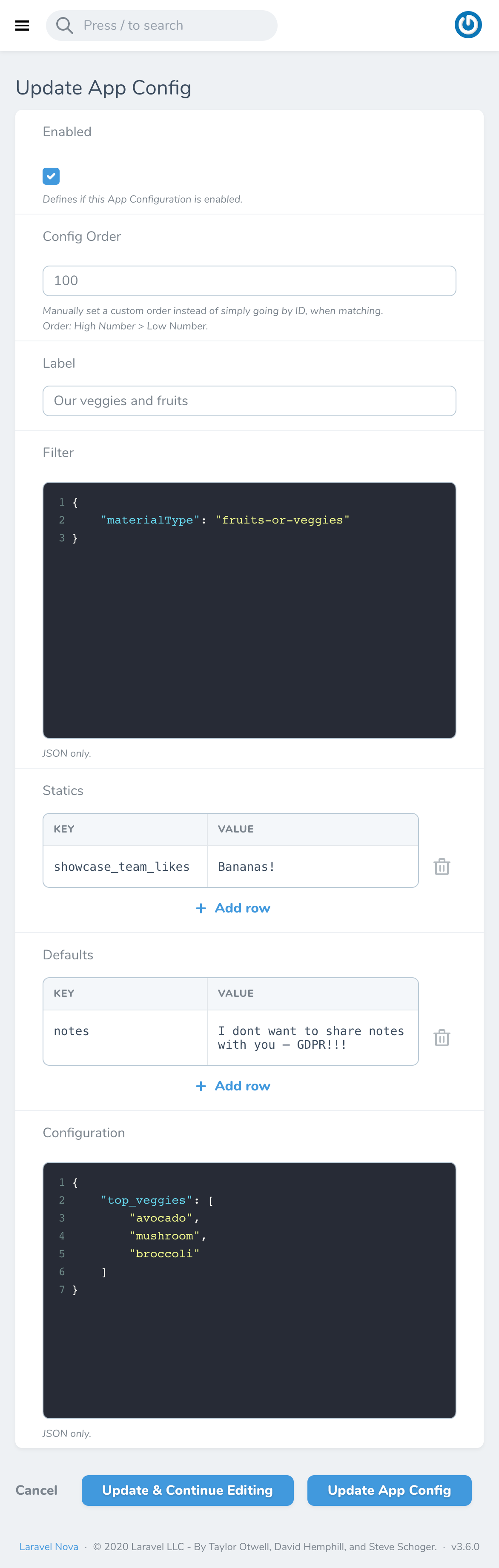
Let us imagine we want to put together a configuration within the Content App
for our fruit'n'veggies example:
<?php// CLIENT_CONFIG/config/app_configurations.phpreturn['veggies_and_fruits_config'=>['label'=>'Our veggies and fruits','filter'=>['materialType'=>'fruits-or-veggies'],'statics'=>['showcase_team_likes'=>'Bananas!'],'defaults'=>['notes'=>'I dont want to share notes with you – GDPR!!!'],'configuration'=>['top_veggies'=>['avocado','mushroom','broccoli']]]];
Okay, with this we defined our first app configuration, namely veggies_and_fruits_config.
Unique Identifier
Please mind that every key should be unique.
If you target the samedefaultorstatic key name within your different App Configuration Keys
it is fine but do never target the same key name in different kind of content fields.
This will not result in bonus points for any High Scsore with your colleagues.
Now let us proceed and consume it inside our very simplifiedBriefing Form:
<bodydata-sc2-container><!-- This is app content within the briefing --><!-- static editor field -->
The SHOWCASE Team likes
<divdata-sc2-static="showcase_team_likes"></div><!-- configuration : target -->
And other people like the following veggies:
<spanclass="veggies"></span><!-- default editor field -->
Write down a comment about what you like the most:
<divdata-sc2-editable="notes"></div><script>/* configuration : definition */
document.addEventListener('sc2.briefing.initialized',function(){
document.querySelector('.veggies').innerHTML = briefing.configuration.top_veggies.join(', ')})</script></body>
Very Good! With this done, we can take another dive into this:
data-sc2-static="showcase_team_likes"
As you can see within our CLIENT_CONFIG/config/app_configurations.php, we have made a
definition for the static key showcase_team_likes which is then reflected in the
Briefing Form
by using it via the HTML snippet <div data-sc2-static="showcase_team_likes"></div>.
Even though you may be able to edit these Froala Editor(opens new window)
rendered field, by its nature changes will not be saved.
data-sc2-editable="notes"
We also defined the default key notes which is then reflected in the
Briefing Form
by using it via the HTML snippet <div data-sc2-editable="notes"></div>.
Via configuration defined keys will be available within the
Briefing Form but you
still need to handle its usage yourself.
For this you need to define and trigger any kind of JavaScript that will result into a binding
of the value(s) that are defined within your key.
In this example this is the top_veggies key, which we set within the HTML of any such Tag that
has the .veggies CSS class after listening for the sc2.briefing.initializedBrowser Event that
SCP triggers.
Statics defined via the static key of your App Configuration key behave like fixed editor fields in your
Briefing Forms and
they can be consumed within Content Apps.
Please do mind that it is up to the Content App developers
how these fields behave.
You should reach out to their docs before using this feature, as usage will probably differ.
Automatic Statics Update
SCP enables you to update static fields (using the data-sc2-static HTML tag attribute) for
Materials which use them automatically.
This will only work when the content is to be stored on the root level of the JSON
representation of the Materials' content.
As the name implies, content fields which are handled as statics cannot be edited and will always
contain the configured value from your app configuration.
As statics work with filters, changing a static value based on a changed material property is simple
and will automatically update the statics within your briefing form.
A static key-value pair will be connected in the Content Apps
via the data-sc2-static HTML tag attribute, as seen in the Example above.
Defaults work the same way as static fields but cannot be updated automatically – an interaction by a user of the
given content application is required in order to apply the given data.
Limited Support
App Configurations are required to be actively consumed by content applications – SCPs built in framework for
briefings do so and application developers are highly encouraged to follow the idea of this configuration.
Furthermore, any defined defaults key will enable users to jump back to a default value whenever they want.
If there is a default configured, the editor will add a new icon to the toolbar which immediately sets the content
to the given default content.
<?phpreturn['config_key'=>[// ...'defaults'=>['notes'=>'I dont want to share notes with you – GDPR!!!'],// ...]];
Dynamic Defaults
If you change your default values dynamically (don't forget the mighty Filters) and the user did not deviate from
the original previous default value, changing the default dynamically will also update the content of the field.
A default key will be consumable in the Content Apps
via the data-sc2-editable HTML tag attribute, like we showed within the Example above.
The configuration key will not be connected to any built-in feature of the Briefings Feature.
You can consume the object with your scripts and work with it.
If you want to use your configuration key definitions in the Content Apps
you first need to bind it via JavaScript as seen down below.
App Configurations will be evaluated from top to bottom and merged to receive a combined set of rules which will
be passed directly to the Content App.
Having said this, App Configurations are even more powerful as we can cascade our own configuration.
In this example we will define how the Content in the
Briefing Form changes based on the set filters.
Let's see, what we will tackle together now:
<?php// CLIENT_CONFIG/config/app_configurations.phpreturn['switzerland'=>['label'=>'Defines some defaults for switzerland','filter'=>['country'=>'switzerland'],'statics'=>['company'=>'RMH MEDIA Switzerland','unsubscribe'=>'http://unsubscribe.com/german-content.html'],'defaults'=>[],'configuration'=>[]],'switzerland_fr'=>['label'=>'Defines some defaults for switzerland with french language','filter'=>['country'=>'switzerland','language'=>'french'],'statics'=>['unsubscribe'=>'http://unsubscribe.com/french-content.html'],'defaults'=>[],'configuration'=>[]],];
Did you notice the difference for the unsubscribe key within the defaults based on the if
the selected country is switzerland and if the selected language is french or not?
This is a real world example on how App Configurations would work for simplifying
E-Mail management with the Briefing Forms Feature.
So, if the user has picked switzerland as country and french as language
SCP will combine the values of the defaults key as follows:
[// used from app configuration "switzerland"'company'=>'RMH MEDIA Switzerland',// used from app configuration "switzerland_fr"'unsubscribe'=>'http://unsubscribe.com/french-content.html',]
You can then go on and expect that the results will be as following when you open it within your
supported Browser of choice:
<html><bodydata-sc2-container><!-- ... --><!-- Fill be filled within here: RMH MEDIA Switzerland --><divdata-sc2-editable="company"></div><!-- ... --><!-- Fill be filled within here: http://unsubscribe.com/french-content.html --><divdata-sc2-editable="unsubscribe"></div><!-- ... --></body></html>
Reminder
App Configurations will be evaluated from top to bottom and merged to receive a combined
set of rules which will be passed directly to the content application.
SC Manager is part of the SCPs' API, where you can also define the App Configuration.
If you have Permissions
to log into it via https://CLIENT_CONFIG.api.showcase-app.io/manage/login you could add and
manage e.g. existing App Configurations there.
As you can see by the URI this is also separated per existing
Content App - as you would expect.
The benefits are:
Fast
Changes and additions made here will be saved directly into the database.
Access
Anybody (Not-Devs) can make changes.
Disadvantages are:
No Sync
Changes are only available where they were made. They are not automatically transferred elsewhere, you have to export the DB and import it at your destination.
No History and less Control
You can't roll back any change or look at the history as there is none. Every change is final and if something gets deleted, it's lost forever.
TIP
Before you start adding App Configurations (via SC Manager) first take your time
and think about what you want to define and how this will affect all past and
upcoming Materials
as every enabled App Configuration you save will directly affect all your
Briefing Forms that have
a compatibility with your App Configuration changes.
Note that you do not need to specify a key anymore as the SC Manager will manage this for you.
You can also change the order in which matching App Configurations will be applied. We will go
into this a bit further later, way down below, but by default any new App Configuration will be applied first.
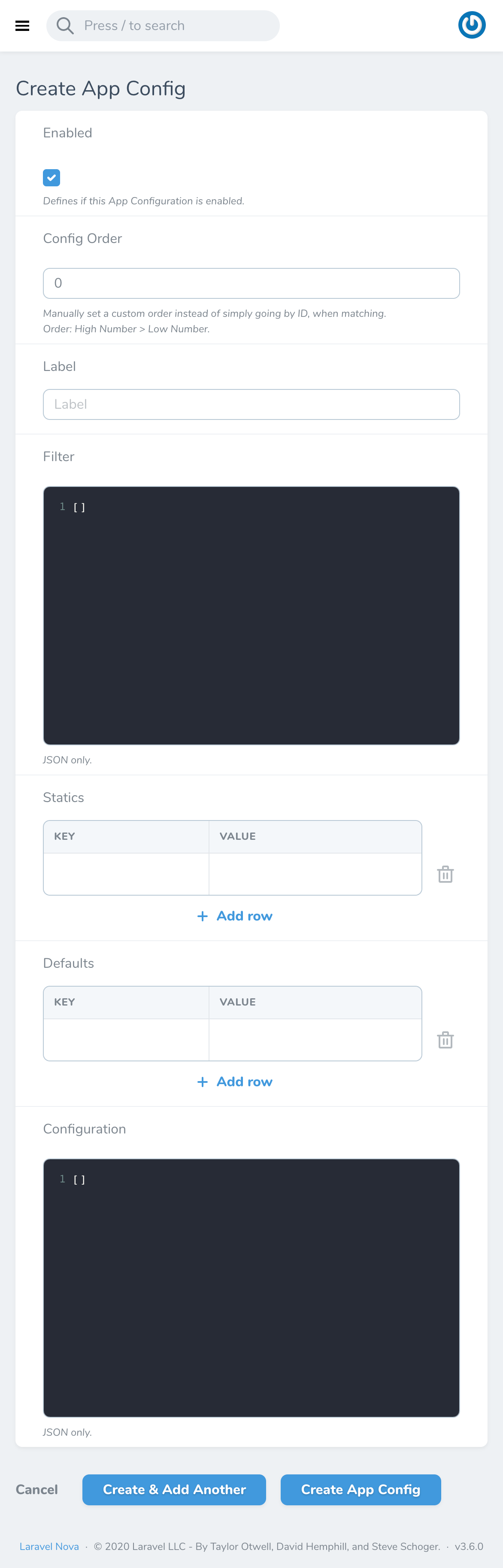
After you logged into SC Manager, navigate to the App Configs menu listing
(under Resources > Configuration) to finally proceed with the click
on the Create App Config button (or + if you are on mobile).
Afterwards you will be presented with this view:
Order
As with the order, when doing everything via the CLIENT_CONFIG/config/app_configurations.php file
where it goes top to bottom, this also goes form top to bottom by default, but related to their given id.
As you cannot define the id yourself, as it is automatically incremented by the database,
you can also define a config_order integer.
Whatever matches will be ordered descending by config_order.
If you do not want to use this feature just leave all the config_order input fields like
the SC Manager gives them to you.
You will come back eventually, after all... 😏
WARNING
Please do mind that the filter and configuration fields currently only accept JSON,
even if they might indicate this otherwise sometimes.
You also need to define every boolean as a string and every string needs to be encapsulated
with a " (double-quoted string) rather than a normal ' (single-quoted string).
So, please also do not write flat or multidimensional arrays within these fields.
Anything else will result into 500 HTTP Status Error Responses.
With what we know by now we can easily determine what bad JSON examples for
filters and configuration, would be like, so let's quickly pin down three consecutive examples.
TIP
Please be vary about the fact that even though the examples may differ
in usage between filters and configuration the topic is nonetheless about the
correct usage of JSON with SC Manager and is therefore not mentioned to reduce confusion.
Single quotes (')
{
  'label': 'Description'
}
Within this example we did not use the double quotes (") which results into an error on saving/updating.
Malformed Array
{"label":"Description","required":false,"conditions":{"rules":["max":100],"message":"Description must not have more than 100 characters"}}
Within this example we did the array no honor, the JSON is malformed. We missed the encapsulating
{} characters for the "max": 100 part, as we defined key+value.
This has now to be an object.
Adding one , too much
{"label":"Description","required":false,"conditions":{"rules":[{"max":100}],"message":"Description must not have more than 100 characters",}}
We finally got the array implemented correctly, but what do we have here?
Please do not add more , to the mix than needed.
This is possible with arrays in e.g. PHP but not correct within JSON.
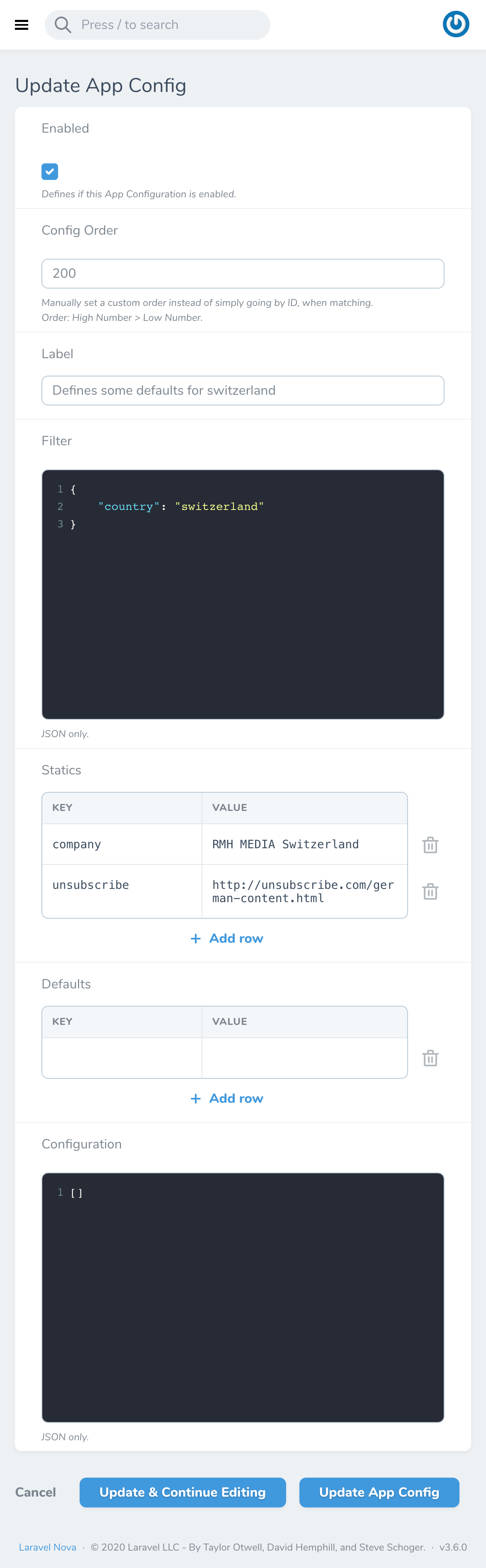
For our switzerland example, when we selected switzerland as
Country and french as
Language, we would get our
already known result that looks like this, when leaving the config_order untouched:
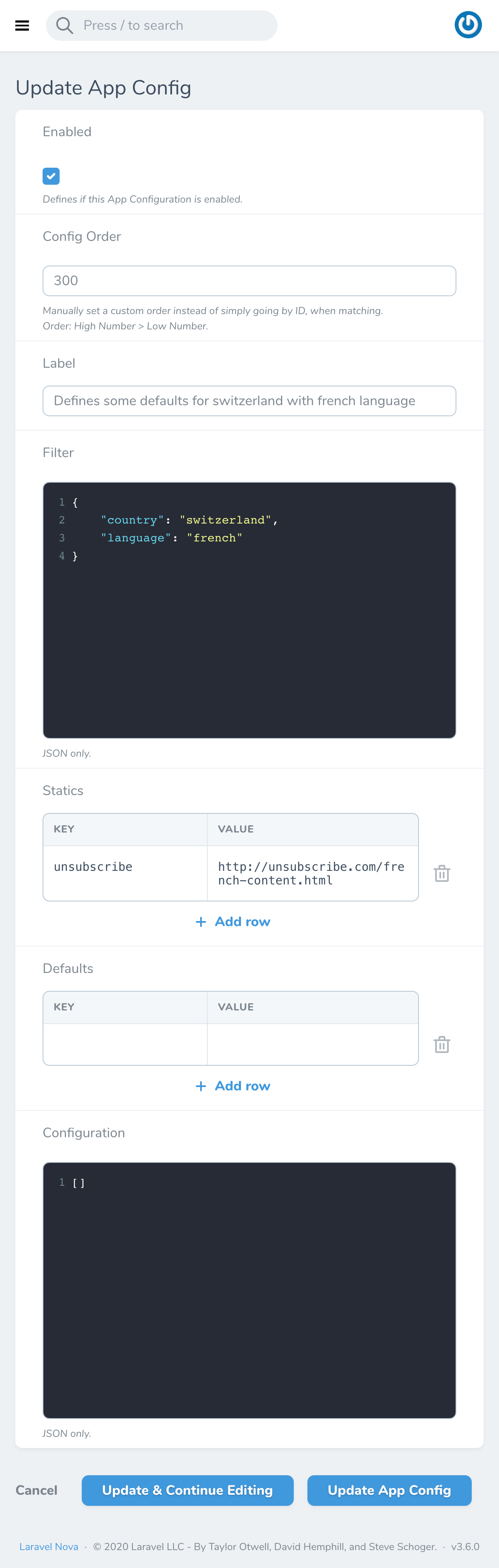
Now, let us see what would happen if we switched the config_order,
for the App Configuration Keys switzerland and switzerland_fr respectively to 300 and 200:
Nothing unexpected: As both App Configuration Filters
are matching, both results will get merged.
The only difference is that this happens now based on the custom config_order definition, not by id.
Enable/Disable
Please keep in mind that App Configuration entries will not be reflected when they are notenabled.