
# Connect External Apps
Now you can connect external Content Apps to Showcase using SC Manager.
After you logged into SC Manager, navigate to the Content Apps menu listing (under Resources > Configuration) to finally proceed with the click on the Create Conetent App button.
Afterwards you will be presented with the next view, to fill in required data:
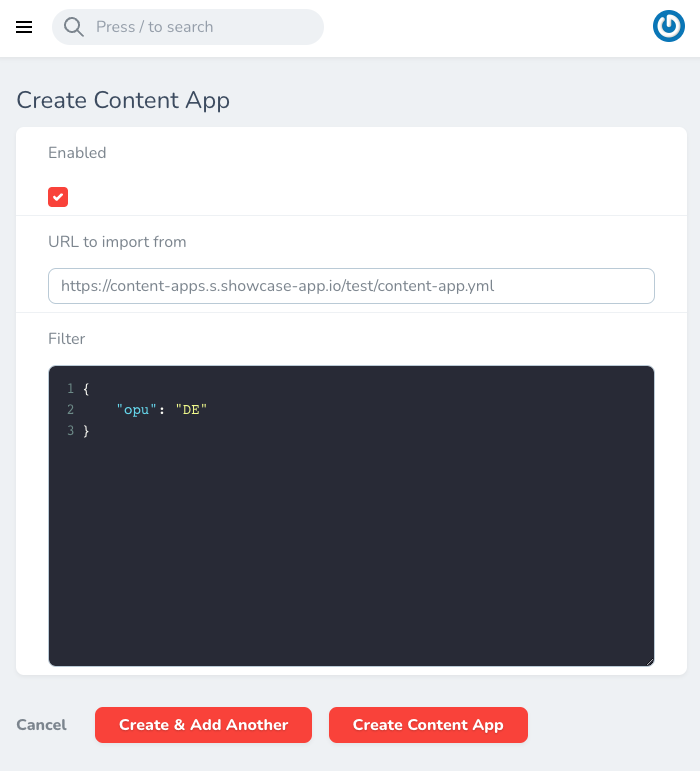
To be able to connect your external Content App to Showcase, Content App needs to have manifest file content-app.yml located within. Field URL to import from, from previous view, should point to that manifest file.
Here is an example of how Content App manifest file should look like:
# /content-app.yml

type: contentApp
schemaVersion: 1
contentApp:
  id: io.showcase-app.content-apps.test
  uri: https://content-apps.s.showcase-app.io/test/index.html
  thumbnail: https://content-apps.s.showcase-app.io/test/thumbnail.jpg
  meta:
    label: SDK Test
    channel: misc
    group: SDK Test
  options:
    disableEditor: false
    showFileListButton: false
  pipes:
    - name: renderBriefingPdf
      steps:
        - type: headless
          script: window.storeBriefingPdf()
  renditions:
    briefing_pdf_pipe:
      type: pipe
      pipe: renderBriefingPdf
      label: Briefing PDF (pipe)
      recreatable: true
      showInBrowser: false
For better understanding of Content App manifest file, and how it works, here is some additional information for you:
id - globally unique identifier, is used as material_types[material_type_url_slug][key|fqn].
meta - from material_types[material_type_url_slug][type].
options - goes into [material_type_url_slug][type].
pipes - pipes are actions which can be invoked from SCP by calling jobs.
steps - once a pipe gets queued, SCP will create a job chain with all steps in it.
type - at the moment, we are only supporting type headless. Type headless starts a Chrome browser in headless mode and executes the script, the script returns a promise so the headless process waits for it before it closes the connection.
renditions - calling a pipe for a rendition.