
qrCodeEnabled is the trigger for enabling the feature itself.
Only setting the URI is not enough, as One Message itself is
also using the same configuration setup and key.
# App Configurations
todo (Move App Configurations Set up details here)
# Customizable elements
todo
# Custom Field Value Mapping
We want to be able to make our Briefing Fields even more customizable, by providing ourselves with the option to fill in Customized Values not only based/filtered on the Material Field Values, but also based on the Briefing Field Values.
Currently, this is only working with the extension, to the filtering, by the selected Brand Scheme.
To enable the mapping inside the App Configurations you need to link the customizations accordingly.
# Setting Up The Linkage
The following snippet shows the global linkage of the mapping within an App Configuration, e.g. called All Approved Emails:
{
  "options": {
    "...": "..."
  },
  "customFieldMappers": {
    "nc_address": "addresses",
    "nc_disclaimer": "disclaimers",
    "nc_legal_code": "legalCodes"
  },
  "toolbarButtons": "...",
  "...": "..."
}
WARNING
The parent value needs to be called customFieldMappers to be recognized in the API's JavaScript.
We can see three mappings: nc_address, nc_disclaimer, and nc_legal_code.
# Defining The Values
Well done, we have now an active linkage that is understood via our API's JavaScript. We now need to define the values for this to finally fully work.
We will now define mappers for the above linked disclaimers key, within an App Configuration,
e.g. called CA-EN Approved Emails, that is matching the given filters for the current
OPU and Material Type:
{
  "allowedSlotElements": {
    "...": "..."
  },
  "disclaimers": {
    "general": "<p>We will not submit to any charges.</p>",
    "friendly": "<p>We will submit to any charges.</p>"
  },
  "options": {
    "...": "..."
  },
  "...": "..."
}
TIP
If nothing is found for the selected Brand Scheme, matching your current Briefing Field Values, it will still revert to the old behaviour.
# Workflow Explanation
You will now find the Briefing replacement work like before, but instead checking for the provided linkages first.
Therefore, nc_address will now first search for an available mapping under configuration > key disclaimers,
inside your current, available App Configuration which are also the keys used in the linkage example up above.
Afterwards API will try to use the result, based on the selected Brand Scheme, like e.g. general.
# Rating Options
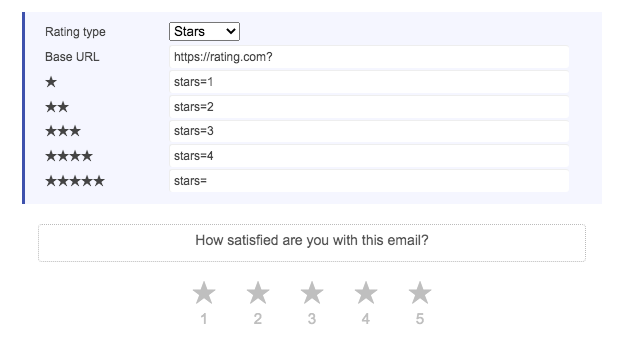
With App Configurations you are able to customize and localize a variety of briefing elements. The rating elements are only one of these options.
To add multiple different rating options to the rating element the following code needs to be added to the
App Configuration.
You can always enable or disable the options you want to use.
{
    "rating_type": {
        "enabled": true,
        "options": {
            "rating_type": {
                "value": "stars",
                "enabled": true
            }
        }
    },
    "rating_like": {
        "enabled": true,
        "options": {
            "url_like": {
                "value": "Rate=5&Q_PopulateResponse={\"QID4\":{\"1\":\"5\"}}",
                "enabled": true
            },
            "url_medium": {
                "value": "Rate=3&Q_PopulateResponse={\"QID4\":{\"1\":\"3\"}}",
                "enabled": true
            },
            "url_dislike": {
                "value": "Rate=1&Q_PopulateResponse={\"QID4\":{\"1\":\"1\"}}",
                "enabled": true
            },
            "base_url_like": {
                "value": "https:\/\/www.rmh-media.com",
                "enabled": true
            }
        }
    },
    "rating_stars": {
        "enabled": true,
        "options": {
            "url_star_1": {
                "value": "Rate=1&Q_PopulateResponse={\"QID4\":{\"1\":\"1\"}}",
                "enabled": true
            },
            "url_star_2": {
                "value": "Rate=2&Q_PopulateResponse={\"QID4\":{\"1\":\"2\"}}",
                "enabled": true
            },
            "url_star_3": {
                "value": "Rate=3&Q_PopulateResponse={\"QID4\":{\"1\":\"3\"}}",
                "enabled": true
            },
            "url_star_4": {
                "value": "Rate=4&Q_PopulateResponse={\"QID4\":{\"1\":\"4\"}}",
                "enabled": true
            },
            "url_star_5": {
                "value": "Rate=5&Q_PopulateResponse={\"QID4\":{\"1\":\"5\"}}",
                "enabled": true
            },
            "base_url_stars": {
                "value": "https:\/\/www.rmh-media.com",
                "enabled": true
            }
        }
    },
    "rating_thumbs": {
        "enabled": true,
        "options": {
            "url_up": {
                "value": "Rate=5&Q_PopulateResponse={\"QID4\":{\"1\":\"5\"}}",
                "enabled": true
            },
            "url_down": {
                "value": "Rate=1&Q_PopulateResponse={\"QID4\":{\"1\":\"1\"}}",
                "enabled": true
            },
            "base_url_thumbs": {
                "value": "https:\/\/www.rmh-media.com",
                "enabled": true
            }
        }
    },
    "rating_global_stars": {
        "enabled": false,
        "options": {
            "url_star_1": {
                "value": "Rate=1&Q_PopulateResponse={\"QID4\":{\"1\":\"1\"}}",
                "enabled": true
            },
            "url_star_2": {
                "value": "Rate=2&Q_PopulateResponse={\"QID4\":{\"1\":\"2\"}}",
                "enabled": true
            },
            "url_star_3": {
                "value": "Rate=3&Q_PopulateResponse={\"QID4\":{\"1\":\"3\"}}",
                "enabled": true
            },
            "url_star_4": {
                "value": "Rate=4&Q_PopulateResponse={\"QID4\":{\"1\":\"4\"}}",
                "enabled": true
            },
            "url_star_5": {
                "value": "Rate=5&Q_PopulateResponse={\"QID4\":{\"1\":\"5\"}}",
                "enabled": true
            },
            "base_url_stars": {
                "value": "https:\/\/www.rmh-media.com",
                "enabled": true
            }
        }
    }
}
Not only the rating options can be customized. The rating question can also be localized.
{
    "ratingGlobalQuestions": [
        "How satisfied are you with this email?",
        "Wie informativ fanden Sie diese Email?"
    ]
}
# CLM Configuration
# Enabling QR Code Within Slide
To enable the QR Code One Message Onboarding feature for CLM you need to just enable it within your App Configurations and also define you valid URLs.
TIP
Please do not forget to check what App Configurations are already defined for CLM and One Message feature sets, before adding something new.
<?php

// %CLIENT_SETTINGS%/config/app_configurations.php

return [

  // ...

  'onemessage_clm_config' => [
    'label'         => 'One Message: Config for CLM',
    'filter'        => [
      'materialType' => ['some-veeva-clm-pptx-briefing']
    ],
    'statics'       => [],
    'defaults'      => [],
    'configuration' => [
      'onemessage' => [
        'onboarding' => [
          'qrCodeEnabled' => true,
          // You should check back with a colleague about the real URIs, just an example
          'qrCodeUrl'     => '%OM_HOST%/onboardings/qr/ref/{{OrgId}}/{{Account.Id}}/qr-code.png',
          'startUrl'      => '%OM_HOST%/onboardings/start/ref/{{OrgId}}/{{Account.Id}}',
        ],
      ],
    ],
  ],

  // ...
];
qrCodeEnabledqrCodeUrl# Reveal Presentation Configuration
For the clients that are using dda_reveal_preview instead of dda_veeva_html_csv rendition we need to configure additional parameters, so the presentation publishing process works.
In the next example we have example of reveal presentation configuration:
<?php

// %CLIENT_SETTINGS%/config/app_configurations.php

return [

  // ...

    'reveal_presentation_configuration' => [
        'label' => 'Reveal presentation configuration',
        'filter' => [],
        'statics' => [],
        'defaults' => [],
        'configuration' => [
            'reveal_presentation_endpoint' => [
                'baseURL' => 'https://api-url-placeholder',
                'paths' => [
                    'publish' => [
                        'method' => 'POST',
                        'path' => 'presentation'
                    ],
                    'deprecate' => [
                        'method' => 'DELETE',
                        'path' => 'presentation/${materialId}'
                    ]
                ]
            ],
            'reveal_presentation_meta_fields' => [
                'id',
                'name',
                'opu',
                'language',
                'brand',
                'date_created',
                'created_by',
                'updated_by'
            ]
        ]
    ],

  // ...
];
reveal_presentation_endpointHere we define an endpoint to be used for presentation actions. baseURL points to the API to be used for actions. paths are containing definitions for specific actions, in this case we have defined actions for publishing and deprecating the presentation. method each path contains method to be used, in this case we are using post for publishing and delete for deprecation.
reveal_presentation_meta_fieldsHere we define meta fields to be used when generating presentation package. All the fields are plain fields used by the material.