
You might set a list of domains (like @example.com) which will be approved to use SCP without any further notice.
# Authorization
todo
SCP allows people to register themselves on the platform.
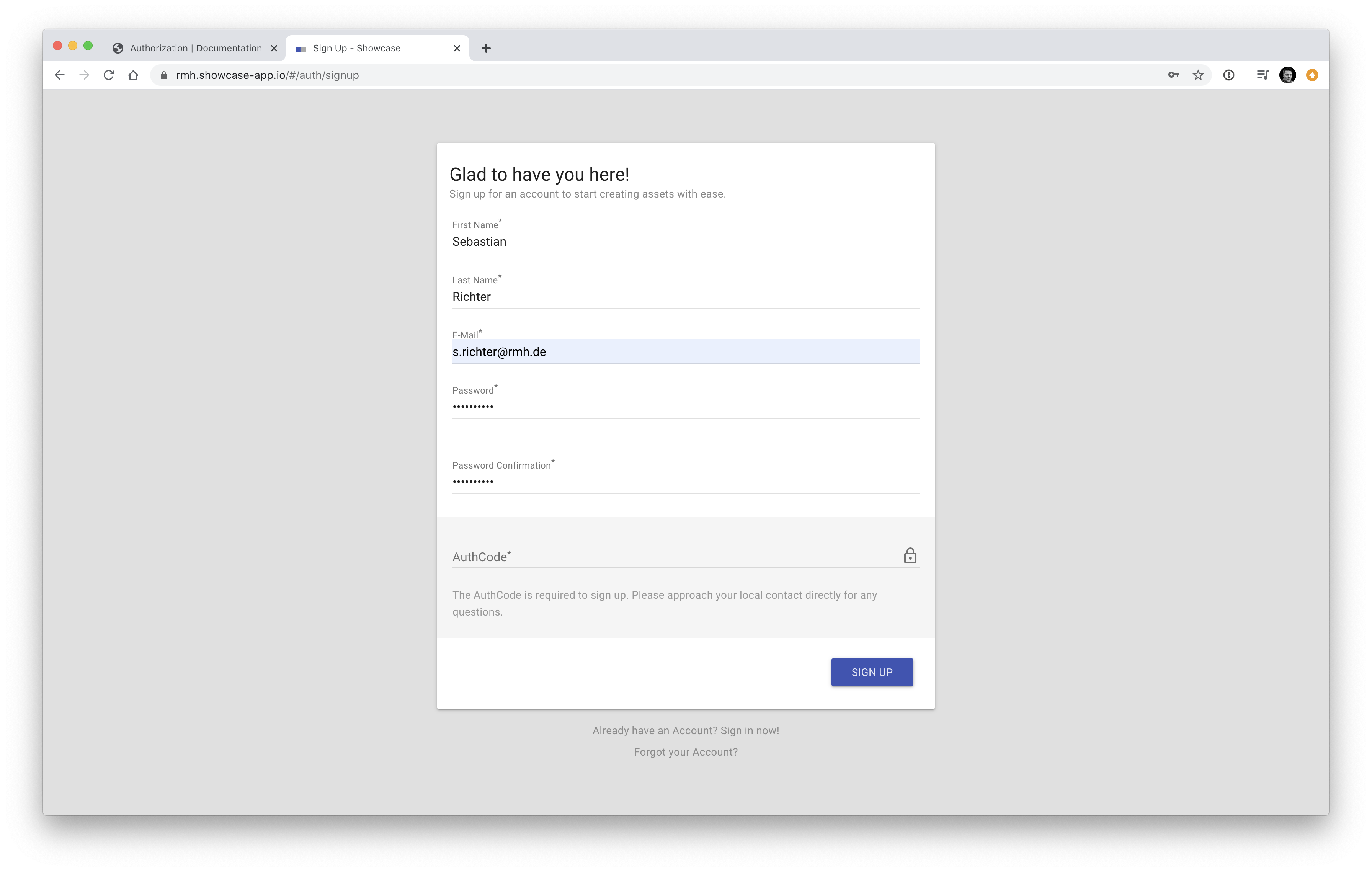
Besides entering some personal data, the user will be required to enter an Auth Code to sign up.
# Auth Codes
Auth Codes tie users to groups and must be unique within the system. They can be configured with the config key
auth_codes.
<?php

// CLIENT_CONFIG/config/auth_codes.php

return [

    // the auth code my_secret_auth_code
    'my_secret_auth_code' => [
        'name' => 'Some Group Name',
        'enabled' => true,
        'roles' => [
            'CONTENT_CREATOR'
        ],
    ],
];
The above configuration creates a new auth code my_secret_auth_code which can be used to sign up with SCP. It will
link the user to the role CONTENT_CREATOR which enables him to create new content.
Auth Codes are Secrets
Don't use the same auth codes for different systems and ensure that auth-code are not easy to guess – in a worst case scenario, a badly set auth code may enable users to destroy materials.
When an Auth Code will be disabled or becomes invalid (the auth code is not configured anymore) the user will be asked for a new one once he signs in next time.
Read more about Auth Codes and Roles.
# User Approval
If you want to approve users before they can start working with SCP, one of the following workflows may be suitable:
Pre-Approved E-Mail Domains
Send E-Mail to Approvers
If the registrant did not use an email-address from one of the configured pre-approved E-Mail Domains, the list of configured approvers will receive an e-mail where they might approve or reject the new user.
Approve all users automatically
The simplest and less secure option is to allow all users to access SCP without any kind of approval.
This is the default setup – Users with an enabled auth-code are allowed to register
Approval mechanisms can be set on a global level config.account_approval.* and/or
on an Auth Code level:
<?php

// CLIENT_CONFIG/config/auth_codes.php

return [

    // the auth code my_secret_auth_code
    'my_secret_auth_code' => [
        'name' => 'Some Group Name',
        'enabled' => true,
        'roles' => [
            'CONTENT_CREATOR'
        ],
        'approvers' => [
            'big-boss@company.com',
            'department@company.com',
        ],
        'approved_email_domains' => [
            'super-creative-agency.com'
        ],
    ],
];
# Approval Flow
- If the user registers with a pre-approved e-mail domain, he or she will be accepted immediately.
- If there are configured approvers (for the auth code or from the default config), these will be notified to approve the user (or even reject him).
- If there is no approver set but the automatic approval is turned on, SCP will automatically approve it, if the auto-approval is turned off the user won't access SCP.
TIP
You can set default approvers and default approved domains inside the General Configuration.
# Advanced Right Management
Beside configuring approval flows and auth codes, SCP enabled you to also modify its permissions and roles. Scopes are an advanced pattern to limit material visibility to a group of users.
# Roles
SCP has a set of pre-configured roles which are shipped by default. Modifying them or adding your own is just adding something
to the config key roles:
<?php

// CLIENT_CONFIG/config/roles.php

return [

    // we've set the new role "MY_NEW_ROLE"
    'MY_NEW_ROLE' => [
        'changeStatus' => true,
        'copyMaterials' => true,
        // additional permissions
    ],

    // you are allowed to modify existing roles:
    'CONTENT_CREATOR' => [

        // all the predefined permissions will be assigned automatically
        // just override the permissions you want to change:
        'changeStatus' => false,
    ],
];
Checkout the default configuration to see the roles built in.
# Permissions
Here is a list of all permissions available in SCP:
| Permission | Description |
|---|---|
| requestMaterials | Users are allowed to create new materials if this permission has been granted |
| viewProperties | Users can open the property pane (right side) and view properties if this is set to true |
| editProperties | Users can edit properties (if not disallowed through Fields Configuration) in general |
| viewBriefing | Users can open the briefing and display the briefing content |
| editBriefing | User are allowed to edit the content of the briefing (if not prevented due to Material Options) |
| changeStatus | If set to true a user can change the status of a Material |
| downloadRenditions | If a user want to access/download renditions, this has to be true |
| deleteAllMaterials | A user with this permission set can delete all materials, not only the ones he has created. |
| deleteOwnMaterials | If set to true, a user can delete the materials he has created. |
| copyMaterials | This role is required to allow a user to copy a material (Material Options control if a material can be copied) |
| deleteMaterialFiles | If this is set to true, Material-attachments can be deleted by this user |
| uploadCustomBriefing | If a user uploads a file named sc2_briefing.html to the attachments of a material and this permission is granted, SCP will use the file to replace the original briefing of this material |
| uploadCustomThumbnail | Uploading a file named sc2_thumbnail.png will lead SCP to replace the material thumbnail if this permission is set to true. |
| uploadCustomPreview | Uploading a file named sc2_preview.zip will lead SCP to replace or create a preview with the given data. |
| recreateRenditions | If a rendition can be created on the fly (recreation) and this role is set to true, the file will be created and queued automagically |
| showServiceOptions | Users with this permissions can show configured service options from the property pane. |
| uploadRenditions | A rendition can be uploaded by a user if this permission is set (API Request) |
| viewNova | A user has to have this permission to access the backend management of the SCP client. |
| createDelegatedTokens | If a user (or service account) have this permission attached, he is allowed to create user access tokens in behalf of a user. |
| usesContentAppPowerFeatures | Will designate the user to be a Content App Power User for briefings. |
# Being a Content App Power User
As you can see from the section above, the usesContentAppPowerFeatures is a special permission which does not have
any effect on the Platform but will designate the user to have access to advanced features of content apps.
We separate users for Content Apps in two different groups:
- Power Users, who might have more options inside the Content App
- Normal Users, who just use the Content App as it is
A user is treated as a Power User if he owns the usesContentAppPowerFeatures permission.
Check out the Details in the Content App Guide.
# Scopes
Scopes are a helpful tool to limit the visibility of materials to a set of users. Scopes are applied on Auth Code Level.
They will be configured within the scopes config key.
<?php

// CLIENT_CONFIG/config/scopes.php

return [
    'active-materials' => [
        'type' => 'include',
        'filter' => [
            'active' => true,
        ],
    ],

    'german-speaking-countries' => [
        'type' => 'limited',
        'filter' => [
            'country' => [
                'germany',
                'switzerland',
                'austria'
            ]
        ],
    ],

    'only-german-materials' => [
        'type' => 'exclusive',
        'filter' => [
            'language' => 'german'
        ],
    ],
];
Scopes will add the given filter criteria on top of every database query which relates to materials and come in three different flavours:
'type' => 'include'The include type will append the criteria to all queries but the user is still able to change the query. This means
that the user e.g. may search for inactive materials if we refer to the example above.
'type' => 'limited'If you create a limited scope, the query can be changed by the user too, but only as long as he searches for
an item which is already within the scope. Given the example above, the user may search for germany, switzerland
and also austria or any excerpt of the given criteria. A query which searches for france for instance is not possible,
as france is not part of the filter criteria.
'type' => 'exclusive'An exclusive scope cannot be changed at any time and will always be applied – refering to the example above, the user
will only see german materials, no matter if he tries to change the query.
included: append (merge) with the query exclusive: query is always exclusively set limited: limited to the given criteria (maximum reached)
# Delegated Tokens
If you are planning to build an interfacing service, it might be interesting for you to sign people in without asking for their passwords – this can be done by creating a Delegated Token.
SCP will return a JWT based token for the given user e-mail.
This is an API call and cannot be done via the SCPs' GUI.
Reach out to the Rest API Docs (opens new window) for more information.
# Credential Expiration
Currently, we have the following defaults set withing SCP:
<?php

// CLIENT_CONFIG/config/config.php

return [
  'security' => [

    // How many passwords will be blocked before allowing the same again
    'password_history_count' => 5,

    // How to expire, Unit is days
    'password_expiry' => [
      'soft_limit'            => 76,
      'expired_hard_reminder' => 89,
      'hard_limit'            => 90,
    ],

];
TIP
You can see that we have defined several numbers here.
We inform the user 14 days before they are locked out, then one day before that again. These numbers need to be reduced from our 90-day time span we want to give everyone. Therefore, we end up with several unexpected numbers, instead of calculating them afterwards.
'password_history_count' => 5Here you can configure the amount of passwords we keep in the history.
That means that the user cannot change their password to one of the last x password they had before.
'soft_limit' => 76By default, we want to inform users 76 days after they last renewed their password (within the current cycle),
that they need to renew their password.
'expired_hard_reminder' => 89By default, we want to inform users 89 days after they last renewed their password (within the current cycle),
that they will get locked out on the next day.
They really need to update their password now.
'hard_limit' => 90On the 90th day, by default, the User Account in question will now be locked.
The user now first needs to set a new password for their User Account or it will stay locked.